Let's start by chosing an image to create an avatar from. Since my favourite
image editing software is The Gimp I'm going to chose Wilbur,
the mascot/logo of the program.

The next thing to do is Open the Avatar Editer by clicking on the AvEd button on the OpenVerse panel, or by typing /aved in one of the OpenVerse text entries.
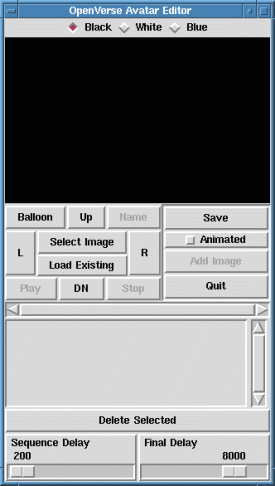 |
| This is how the Avatar Editor AvEd looks by default.
Please give notice to each button and setting on the panel. The
buttons up top labeled Black, White, Blue will change the
preview background color.
In the middle of the panel on the left view side you'll see some
more buttons labeled Balloon, Up, Name, L, R, Play, Dn, Stop
as well as Select Image, Load Existing. To the right view side of those buttons you will see another grouping of buttons labeled Save, Animated, Add Image, Quit. Save and Quit are pretty self explainatory, as they either save an avatar file after creation, or quit AvEd once you are finished with it. The other two buttons in that area we'll get to a little later once we start learning how to make animated avatars, that's when those buttons come into play. Below all these buttons we see a large grey area, this is a listing area which shows which images have been imported to create avatars with. and at the main bottom we see two sliders which are used for animated avatars labeled Sequence and Final Delay. Click on the image to the right to see more snapshots and info |
OK, now that I have an image I want to use and basically know what each of
those buttons on the Avatar Editor window really does I can start to import my
image. But first, I have to make sure my image is in the proper format. AvEd
only accepts .gif images. Since my image is in the .png format I'll have to
convert it using The Gimp. This takes me all of about 5 seconds to do,
open the image in The Gimp, then chose the Save As.. feature and save
it as Wilbur.gif. Ok, now I have a gif image.
I click on Select Image, browse to where I saved Winbur.gif, and chose
open. Now let's see what my AvEd window looks like.
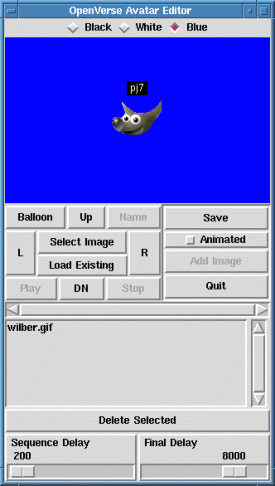
 | This is what I have now. Notice anything differant about it? I have
chosen blue as my preview background color, in the large grey area
towards the bottom it has my image name listed, and I can now see
both my image, and my nametag in the preview window. Now I can move my nametag around with the Up, L, R, DN buttons. Hrm, think I'll place my nametag above my head. You can see what I did in this image. As you see in this image I have moved my nametag slightly above my avatar image. I did this by pressing the Up button several times until the nametag was in the right spot. I could have also moved my nametag down, or to the left or right of my image with the other buttons, but it looks good above my head.
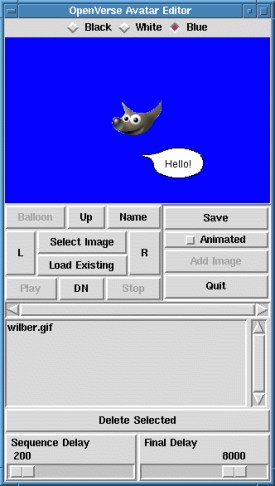
Now time to position the speech ballon. I'll click on the button
labeled Balloon and my speech balloon will appear as shown in
this image. |
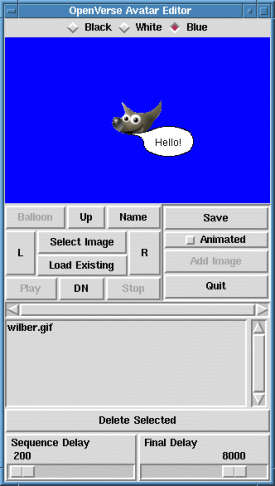
Well now, it seems I'm finished setting everything up. I have my image
imported, my nametag is positioned, and my speech balloon is in place as
well. All that is left for me to do is to save this piece of work as an
avatar.
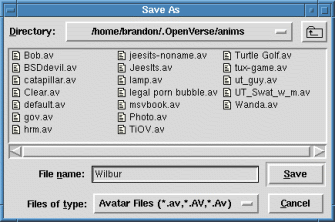
Remember the Save button in the middle on the right view side? I'll
just hit it and then will be presented with my save options. By default it
will want to save in the correct directory/folder so there is no need to
traverse through your directory tree. Just give your avatar a name, I'm
calling my Wilbur. No need to give it an extention as AvEd will take care of
that for you. Just a simple name to help you remember what the avatar is as
shown in this image.
And that's all there is to creating a basic avatar for OpenVerse. You're
newly created avatar will be available in the Avatars dropdown menu on
the OpenVerse main panel. Next we'll examine how to create animated avatars,
this should be fun.
pj7@openverse.org